Chapter 08 · Part 1
Export Excel to CSV (Windows)
If Excel keeps saving your CSV with semicolons instead of commas, it’s following your Windows “List Separator” setting. Switch it to a comma once and your CSV will export correctly for iSMS.
Why this happens
Excel uses the Windows List Separator as the delimiter when it saves a CSV. In many regions that’s a semicolon (
;), but iSMS expects a comma (,). Changing this one Windows setting fixes every CSV you export afterwards.- 1
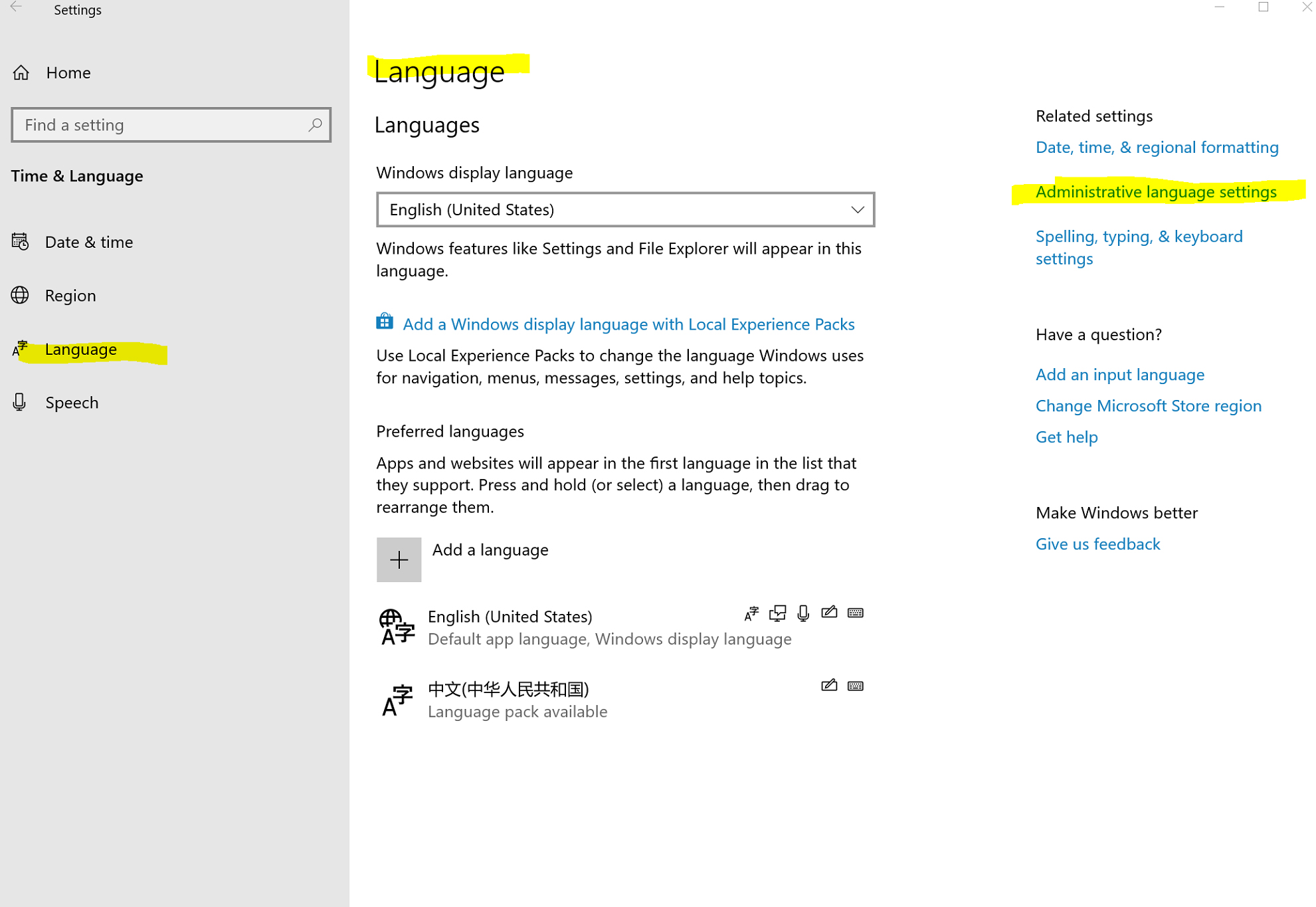
Open Administrative Language Settings
Open the Windows Region control panel and go to Administrative (or Additional) settings. The exact name varies slightly by Windows version.
- 2
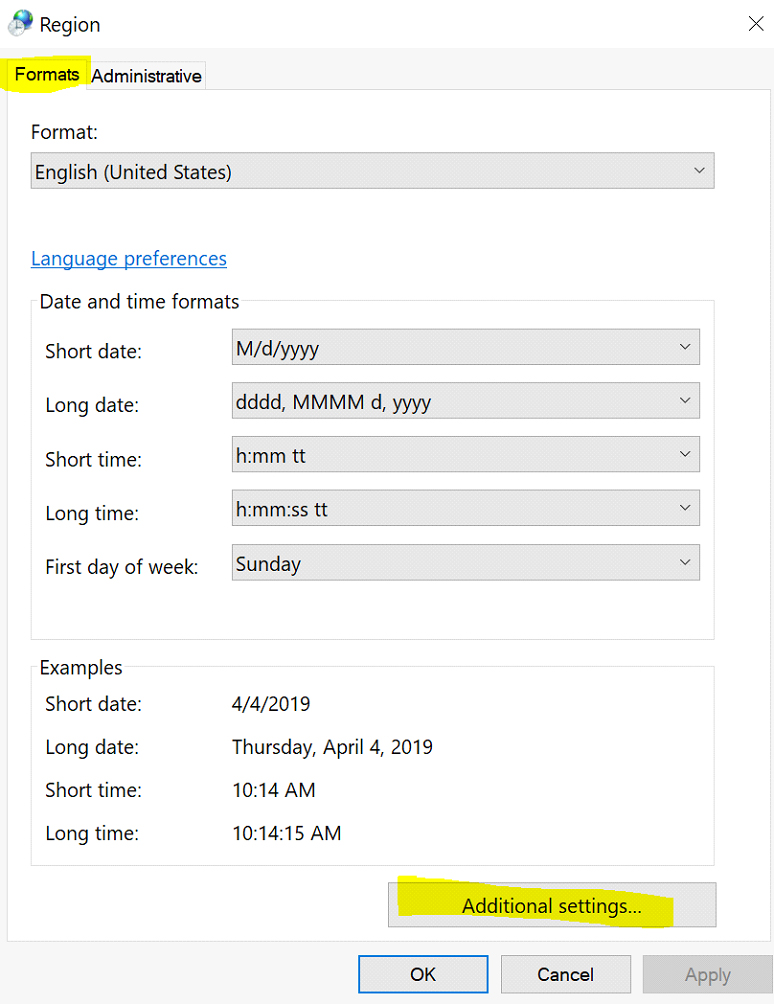
Open Additional settings
On the Formats tab, click Additional settings.
- 3
Change the List separator
Change the List separator from a semicolon (
;) to a comma (,), then click Apply and OK. Now save your file as CSV in Excel — it will use commas.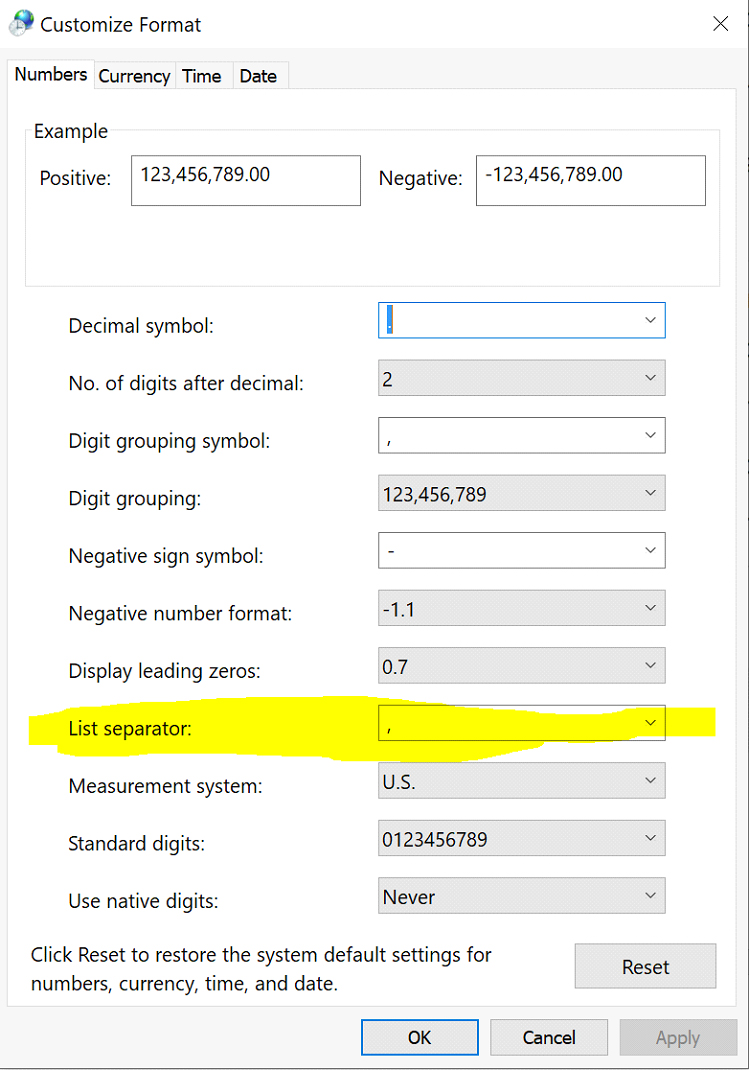
The change you’re making
;Before
,After
Set the List separator to a comma so Excel writes a standard, iSMS-ready CSV.
With commas set, save your sheet as CSV and continue to CSV Compose to upload it.
Need help?
Our team is happy to assist with anything in this guide. Contact us →