Send Bulk SMS with Excel / CSV
Upload an Excel or CSV file and send SMS to all your contacts in one go.
Sending Bulk SMS with Excel / CSV
iSMS supports sending bulk SMS directly from an Excel file by converting it to CSV (Comma Separated Values) format first. There are two methods: importing contacts to your address book, or sending directly with a CSV file.
📋 Before you start: Convert your Excel file to CSV format. CSV means each column is separated by a comma. All mobile numbers must include the country prefix (e.g. Malaysia: 60123456789).
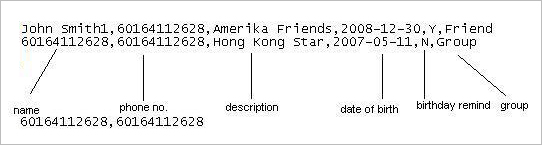
Step 1 — Convert Excel to CSV
- Open your Excel file and organise your contact data (phone number, name, etc.) in columns — no header row labels needed.
- Go to File → Save As and select CSV (Comma delimited) (.csv) as the file type.
- Click Save. Your CSV file is ready.
Need a step-by-step guide with screenshots? How to Create CSV in Excel → | Mac OS Guide →
Method A — Import to Address Book
- Log in to your iSMS member account.
- Go to Address Book → Import Contacts.
- Select the CSV file and upload it. Your contacts are now in the Address Book.
- Compose your SMS, select the imported contacts, and send.
Method B — Send Directly with CSV
- Go to Compose SMS and select the Upload CSV option.
- Write your message and attach the CSV file.
- Send — iSMS will deliver the message to each number in the CSV file.
📞 Contact iSMS Support
💬 WhatsApp +6016 450 2380 · 📞 1800 87 7061 · KL +603 2780 3880 · PG +604 2024 033 · [email protected]
Please include your iSMS username in any support email.